Download AutoRuns for Windows
The most thorough startup monitor for Windows. See every program, service, driver, and scheduled task that runs automatically — and control them all.
What Is AutoRuns?
A deep look at the most complete startup monitor available for Windows, built by the Sysinternals team at Microsoft.
The Complete Startup Monitor
AutoRuns is a free system utility from Microsoft Sysinternals that shows you every program, service, driver, and scheduled task configured to start automatically on your Windows PC. Created by Mark Russinovich, it goes far beyond what the built-in Windows Task Manager shows. Where Task Manager covers the basics, AutoRuns digs into 19 separate categories of auto-start locations, including Registry run keys, shell extensions, browser helper objects, Winsock providers, and more.
The tool comes as a portable application — just download, extract, and run. No installation needed. It works on every Windows version from 7 through 11, plus Server editions going back to 2012. The current release is version 14.11, and the entire package is only 2.8 MB.
Who Is It For?
IT professionals and system administrators use AutoRuns daily to audit what runs at startup across enterprise machines. Cybersecurity analysts rely on it for malware hunting — its VirusTotal integration lets you submit file hashes directly from the interface to check for known threats. Power users turn to it when their PC boots slowly or behaves oddly after installing new software.
AutoRuns also ships with a command-line companion called Autorunsc, which can export data as CSV or XML. This makes it useful for scripting and automating startup audits across multiple machines.
What Makes It Different
Most startup managers only show you items in a few Registry keys and the Startup folder. AutoRuns checks everything: logon scripts, Explorer shell extensions, Internet Explorer add-ons, boot-execute images, known DLLs, Winlogon notifications, print monitors, LSA providers, network providers, and WMI entries. It color-codes entries to help you spot problems fast — yellow for missing files, pink for unsigned or suspicious items, green for newly added entries.
Digital signature verification is built in, so you can quickly tell whether a file is legitimately signed by its publisher. And you can hide all signed Microsoft entries with one click, which strips away the noise and lets you focus on third-party software that might be causing issues.
Ready to take control of your startup items? Download AutoRuns or jump to Getting Started.
System Requirements
AutoRuns is a portable, lightweight utility that runs on practically any Windows machine without installation.
Windows 7 SP1 (32-bit or 64-bit)
RecommendedWindows 10 / 11 (64-bit)
1 GHz single-core (x86 or x64)
Recommended1 GHz+ dual-core or faster
512 MB
Recommended2 GB or more
5 MB free space
Recommended10 MB (for extracted ZIP contents)
1024 x 768 resolution
Recommended1280 x 720 or higher
No installer needed
Extract the ZIP and run Autoruns.exe directly. Works from USB drives too.
AutoRuns ships as a 2.8 MB ZIP archive containing both 32-bit and 64-bit builds, plus a command-line version (Autorunsc.exe) for scripted use. Administrator privileges are recommended for full visibility into all startup locations, though the tool runs fine under a standard account with limited scope.
Ready to get started? Download AutoRuns
Key Features
AutoRuns gives you total visibility into every program, driver, and service that starts with Windows — across 19 auto-start categories.
19 Auto-Start Categories in One View
AutoRuns scans Logon entries, Explorer extensions, Internet Explorer add-ons, Scheduled Tasks, Services, Drivers, Codecs, Boot Execute sequences, Image Hijacks, AppInit DLLs, KnownDLLs, Winlogon hooks, Winsock providers, Print Monitors, LSA Providers, Network Providers, WMI entries, and Office add-ins. The “Everything” tab shows all categories at once so nothing stays hidden.
VirusTotal Integration
Submit file hashes directly to VirusTotal from within AutoRuns. Results appear inline, so you can spot malware or suspicious entries without leaving the tool. IT professionals and security analysts rely on this to quickly triage compromised machines.
Digital Signature Verification
AutoRuns checks the digital signature of every auto-start entry. Verified publishers appear in blue, while unsigned or suspicious entries get flagged. Use “Hide Signed Microsoft Entries” to filter out trusted OS components and focus on third-party items.
Color-Coded Entry Status
Entries are color-coded for quick scanning. Yellow highlights items where the file was not found on disk. Pink flags entries with no verified publisher. Green marks recently added auto-start items. This visual system helps you identify problems at a glance.
Command-Line Version (Autorunsc)
Autorunsc.exe outputs results in CSV or XML format, making it easy to feed into scripts, SIEM tools, or log analysis pipelines. Sysadmins use it to audit startup configurations across entire fleets of machines through remote management tools.
Quick Filter Search
Type any keyword into the filter bar and AutoRuns instantly narrows the list to matching entries. Search by name, publisher, file path, or description. On systems with hundreds of auto-start items, this saves significant time.
Offline System Scanning
Analyze startup entries on a Windows installation that is not currently running. Mount the drive or point AutoRuns at an offline system directory. Forensics teams use this to examine potentially infected machines without booting into the compromised OS.
Enable and Disable Entries
Toggle any auto-start entry on or off with a single checkbox click. AutoRuns does not delete the entry — it disables it so you can re-enable it later if needed. This non-destructive approach makes troubleshooting startup issues safe and reversible.
Jump to Registry or File Location
Double-click any entry to open its exact Registry key in Regedit or its file location in Explorer. This direct navigation eliminates the manual work of tracking down where an auto-start item is configured and which executable it points to.
Per-User Account Scanning
View auto-start items for any user account on the machine, not just the currently logged-in user. Administrators can check what programs start for each user profile, making it easier to audit shared workstations or troubleshoot user-specific startup problems.
Portable — No Installation
AutoRuns runs directly from the extracted ZIP archive. No installer, no setup wizard, no Registry changes on the host. Drop it on a USB drive, plug it into any Windows machine, and start scanning. The entire package is under 3 MB.
AutoRuns is part of the Microsoft Sysinternals suite of system utilities.
Download AutoRuns
Get the latest version directly from Microsoft. AutoRuns is completely free, portable, and requires no installation.
AutoRuns v14.11
Download AutoRuns Autoruns.zip — Direct from MicrosoftClean, ad-free download hosted by Microsoft Sysinternals
Alternative Download Sources
Sysinternals Live
Run AutoRuns directly from the web without downloading. Always the latest build.
Run from LiveMicrosoft Store
Install the full Sysinternals Suite from the Microsoft Store. Includes AutoRuns and 70+ tools.
View on StoreCommand-Line Version
Autorunsc.exe is included in the ZIP. Outputs CSV or XML for scripting and automation.
View Docs
The ZIP archive includes Autoruns.exe (GUI), Autorunsc.exe (CLI), and both 32-bit and 64-bit builds.
Extract to any folder and run — no admin rights required for basic scanning.
Getting Started with AutoRuns
From download to your first startup scan in under five minutes. Here is everything you need to know about using AutoRuns on your Windows PC.
Downloading AutoRuns
Head to our download section above to grab the latest AutoRuns package. The download is a single ZIP archive weighing about 2.8 MB — it should finish in a few seconds on most connections.
Inside the ZIP you will find four executables: Autoruns.exe (32-bit GUI), Autoruns64.exe (64-bit GUI), Autorunsc.exe (32-bit command-line), and Autorunsc64.exe (64-bit command-line). If you are running a modern 64-bit version of Windows 10 or 11, go with Autoruns64.exe. Not sure? Open Settings > System > About and look at “System type” — it will say either “64-bit” or “32-bit.”
AutoRuns is a portable application. There is no installer, no setup wizard, and nothing gets written to your registry. You can run it straight from the extracted folder, drop it on a USB drive, or keep it in your Sysinternals toolkit folder. The command-line version (Autorunsc) is useful if you need to script scans or export results to CSV for documentation.
First Launch and Setup
Since AutoRuns is portable, there is no installation process. Just double-click Autoruns64.exe (or Autoruns.exe on 32-bit systems). The very first time you open it, you will see the Sysinternals EULA — read through it and click Agree to continue. This only appears once.
If Windows SmartScreen pops up with a blue warning saying “Windows protected your PC,” click More info and then Run anyway. This happens because the file was downloaded from the internet. AutoRuns is signed by Microsoft, so it is safe to proceed.
After accepting the EULA, AutoRuns immediately begins scanning your system. The status bar at the bottom shows progress — a typical scan takes 10 to 30 seconds depending on how many startup entries your system has. Wait until the status bar reads “Ready” before you start browsing entries.
No registration, no account creation, no license key. It just works out of the box.
Initial Configuration
Before you start disabling entries, adjust a few settings that make AutoRuns far more useful. All of these are in the Options menu along the top menu bar.
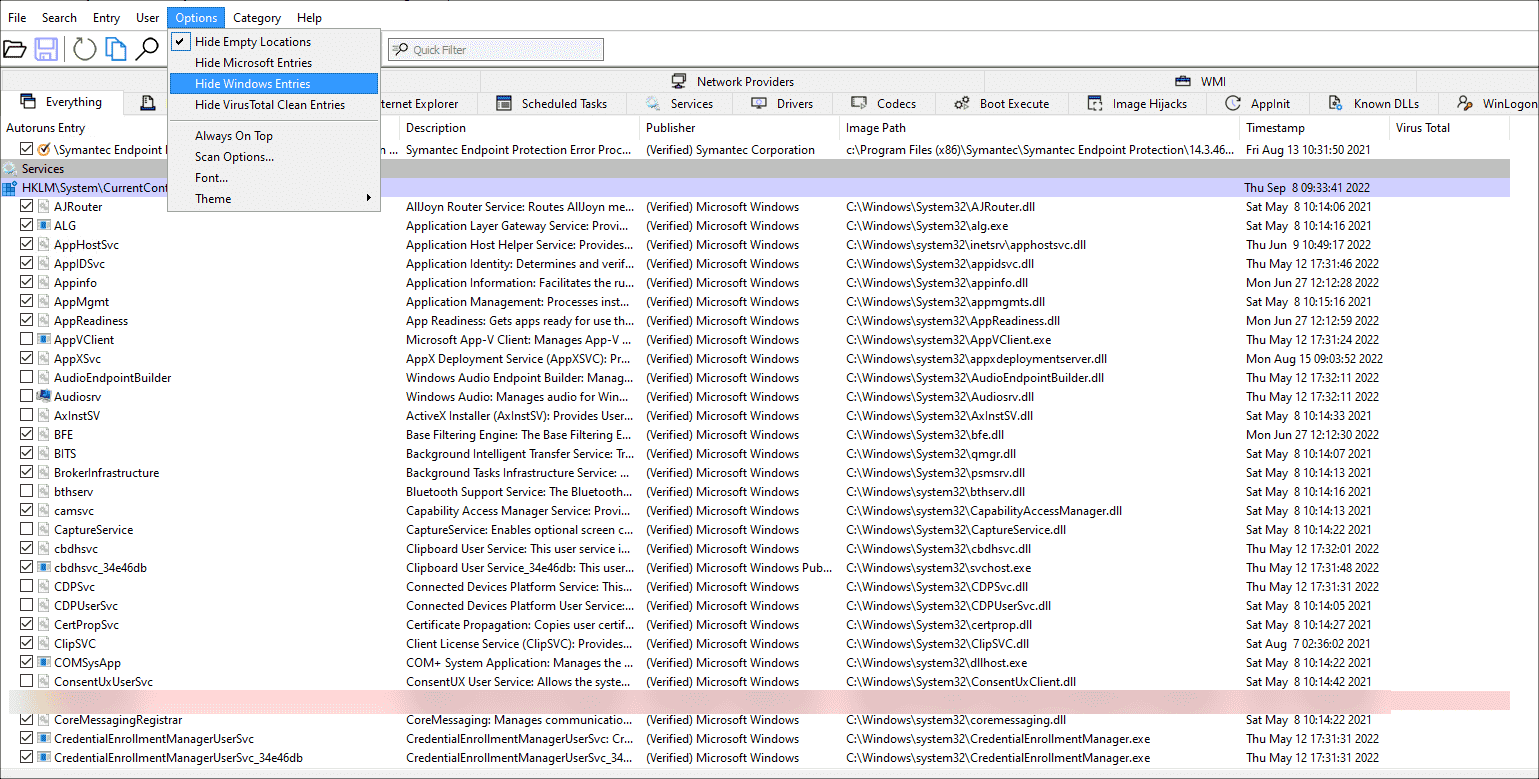
- Options > Hide Signed Microsoft Entries — Turn this ON. It filters out hundreds of known-safe Windows components so you can focus on third-party software and potential problems. This single toggle cuts the noise dramatically.
- Options > Hide Windows Entries — Turn this ON as well. Combined with the previous filter, you will only see entries from software you (or someone else) installed.
- Options > Scan Options > Check VirusTotal.com — Enable this and check Submit Unknown Images. AutoRuns will send file hashes to VirusTotal and show detection results right in the interface. A “0/72” result means the file is clean across 72 antivirus engines.
- Options > Scan Options > Verify Code Signatures — Enable this to confirm whether each file carries a valid digital signature from its publisher. Unsigned files deserve closer inspection.
After changing these settings, press F5 (or click the Refresh button in the toolbar) to rescan with the new filters applied. The entry list should be much shorter and easier to read now.
Your First Startup Scan
With your filters in place, you are looking at a clean list of third-party autostart entries. Here is how to read and act on what you see.
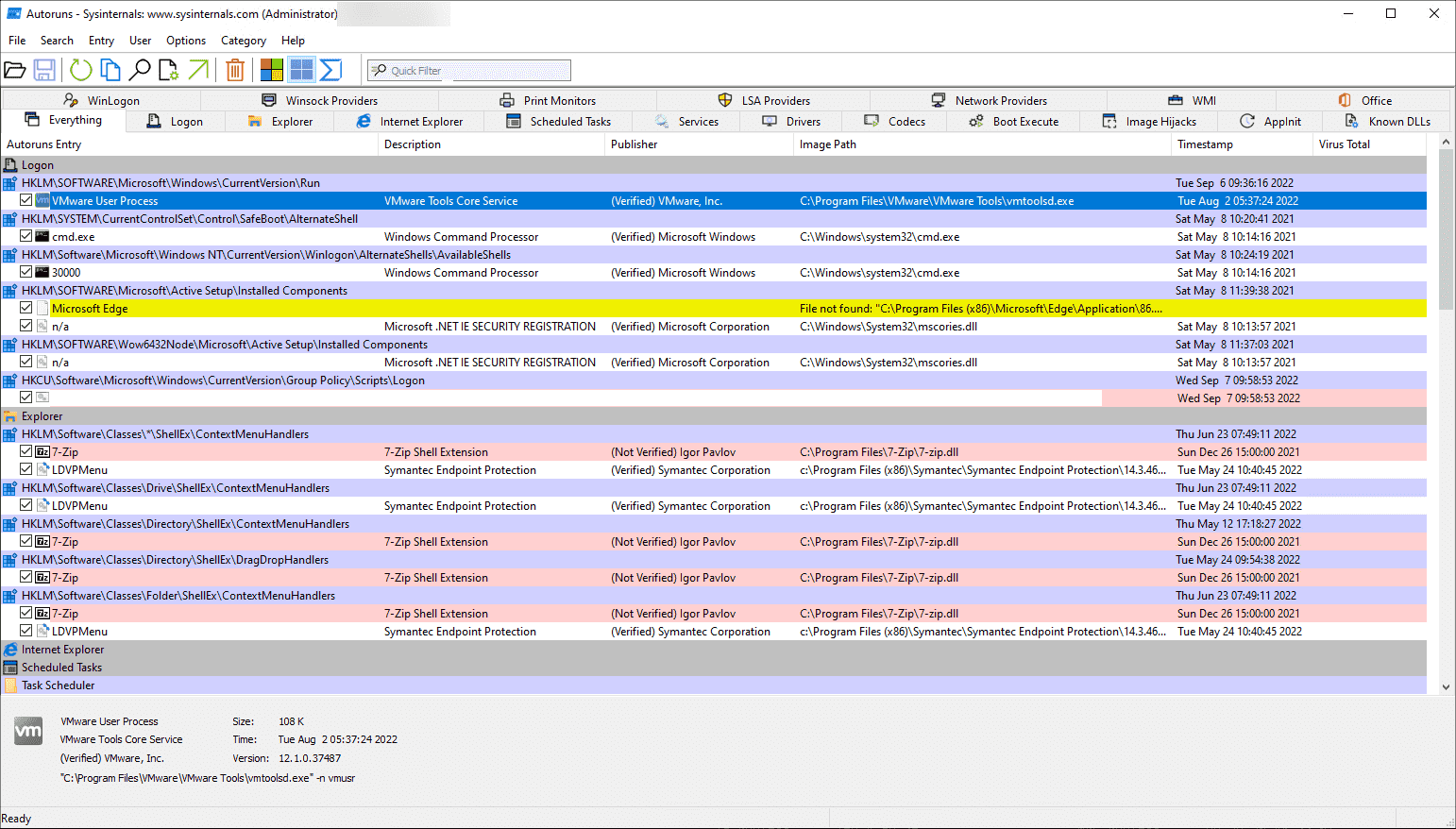
Understanding the tabs. The row of tabs across the top sorts entries by category. The Everything tab shows all locations combined. Logon covers your classic startup programs (Startup folder, Run/RunOnce registry keys). Services lists Windows services set to start automatically. Scheduled Tasks shows anything triggered by Task Scheduler. Drivers covers kernel-mode drivers. For most people, the Logon and Services tabs are where you will spend most of your time.
Reading the color codes. AutoRuns highlights entries to draw your attention:
- Yellow rows — The file referenced by this entry no longer exists on disk. Usually safe to delete the entry.
- Pink rows — No publisher information or the code signature could not be verified. These deserve investigation.
- Green rows — Newly added since your last scan. Worth reviewing to make sure nothing unexpected appeared.
Investigating an entry. Right-click any row to access these key actions:
- Jump to Entry — Opens the exact Registry key or folder location in Regedit or Explorer.
- Jump to Image — Opens Explorer at the file’s location so you can check its properties.
- Search Online — Searches the entry name online to see what others say about it.
- Check VirusTotal — Submits the file hash to VirusTotal (if not already checked).
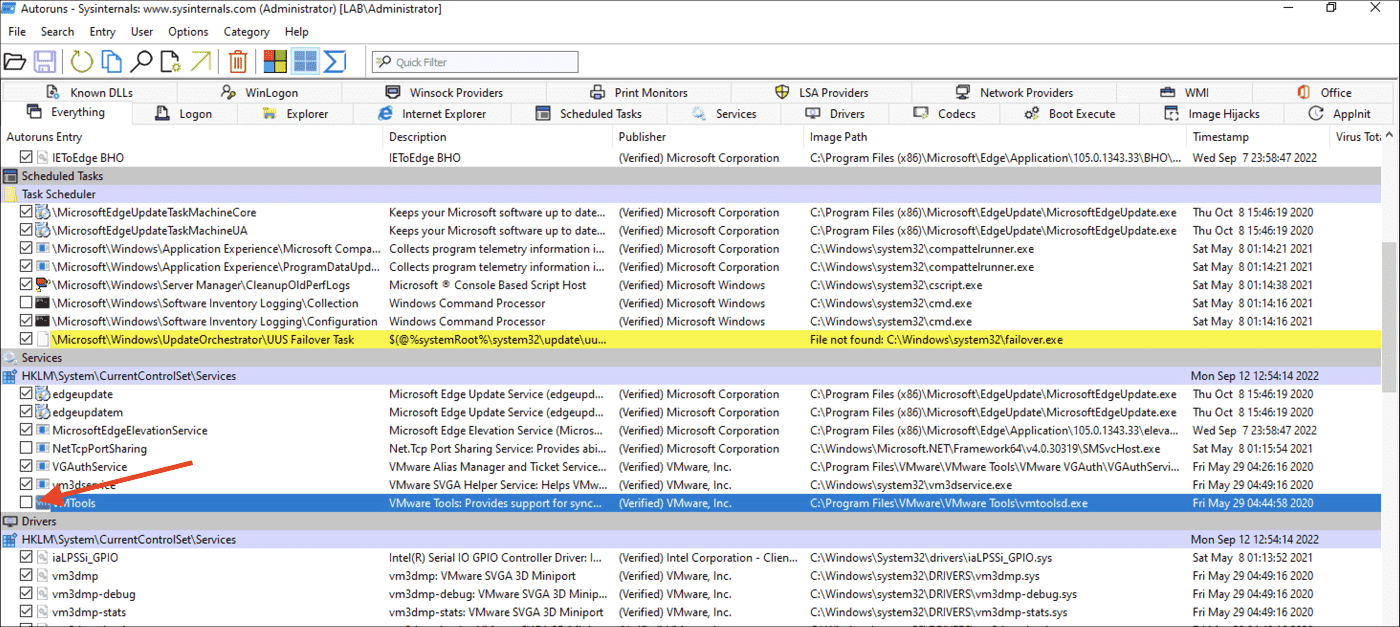
Disabling vs. deleting. To temporarily disable a startup entry, uncheck its checkbox. The entry stays in AutoRuns but will not run on next boot. This is fully reversible — just re-check the box to restore it. To permanently remove an entry, right-click and choose Delete. Only do this if you are sure the entry is junk or malware.
Useful keyboard shortcuts:
| Shortcut | Action |
|---|---|
| F5 | Refresh / rescan all entries |
| Ctrl + F | Open the quick filter bar to search entries |
| Ctrl + S | Save current scan results to an .arn file |
| Ctrl + D | Compare current scan with a saved baseline |
| Ctrl + A | Select all entries in the current view |
Tips and Best Practices
Save a clean baseline. Right after a fresh Windows install (or when your system is running well), open AutoRuns and go to File > Save. Save this as something like baseline-clean.arn. Later, you can use File > Compare to load that file and instantly see what changed. New entries that were not in your baseline get highlighted in green, making it easy to spot unwanted additions.
Use the command-line version for automation. Autorunsc.exe can export scan data in CSV or XML format. This is useful for IT teams managing multiple machines. A quick example:
This command scans all locations (-a *), outputs CSV (-c), includes file hashes (-h), verifies signatures (-s), and checks VirusTotal (-v -vt).
Common beginner mistakes to avoid:
- Do not disable entries you cannot identify without researching them first. Some third-party drivers are needed for your hardware to work correctly (audio, network, GPU).
- Always create a System Restore point before deleting entries. If something breaks, you can roll back.
- Do not panic over pink-highlighted entries. Some legitimate older software simply does not have code signatures. Cross-check with VirusTotal before assuming the worst.
Power-user features worth knowing: The User menu lets you scan autostart entries for other user accounts on the same machine — handy on shared PCs or when troubleshooting another person’s login issues. You can also analyze an offline Windows installation via File > Analyze Offline System, which is invaluable for malware removal when the infected OS will not boot normally.
Where to find help: The official Microsoft Learn page has the full documentation. For community help, search r/sysadmin or r/techsupport on Reddit — both communities reference AutoRuns regularly. Aaron Margosis (Microsoft) also has a detailed walkthrough on the Sysinternals YouTube channel.
Ready to clean up your Windows startup? Download AutoRuns and take control of what runs on your PC.
AutoRuns Screenshots
See the AutoRuns interface in action across its different views and tabs.

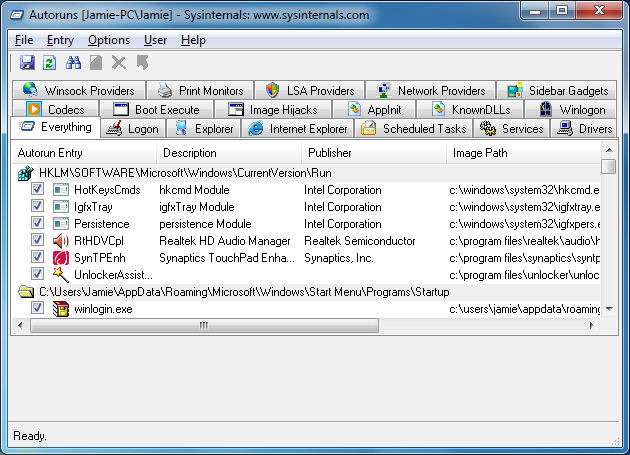
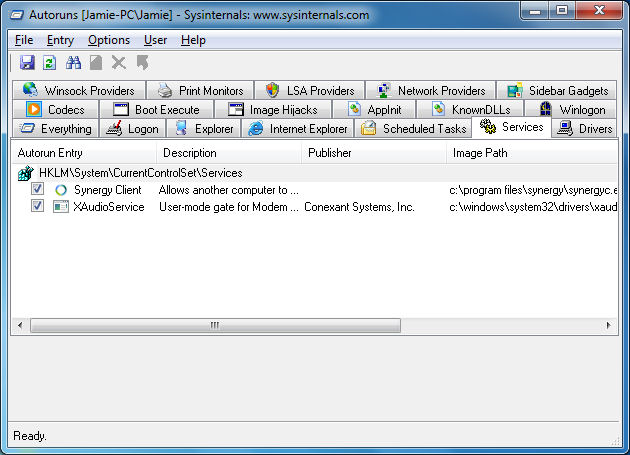
Click any screenshot to enlarge
Frequently Asked Questions
Answers to the most common questions about downloading, using, and troubleshooting AutoRuns on Windows.
Is AutoRuns safe to download and use?
Yes, AutoRuns is completely safe. It is developed by Mark Russinovich and published by Microsoft Corporation as part of the official Sysinternals suite. Microsoft acquired Sysinternals in 2006, and every release goes through Microsoft’s internal code signing and security review process. The v14.11 download (2.8 MB ZIP) is digitally signed with a valid Microsoft certificate.
AutoRuns does not modify system files on its own. It reads and displays startup entries from the Windows Registry, scheduled tasks, services, and other autostart locations. You can disable entries by unchecking them, but AutoRuns never deletes files or makes changes without your direct action. IT professionals and cybersecurity analysts at organizations like Varonis, SANS, and Microsoft itself recommend AutoRuns as a standard diagnostic tool for malware hunting and boot optimization.
- Published by Microsoft Corporation under the Sysinternals brand
- Digitally signed with a Microsoft authenticode certificate
- Downloaded over millions of times from the official Microsoft Learn page
- Zero detections on VirusTotal scans from the official download source
- No installer required — no bundled adware, toolbars, or third-party offers
Pro tip: Always download AutoRuns from the official Microsoft source at learn.microsoft.com/en-us/sysinternals/downloads/autoruns. Third-party download sites sometimes repackage Sysinternals tools with adware or outdated versions.
For a direct download link, visit our Download section.
Is AutoRuns free from malware and spyware?
AutoRuns is 100% free from malware and spyware when downloaded from official Microsoft sources. The official ZIP archive (Autoruns.zip, 2.8 MB) contains only the executable files: Autoruns.exe and Autoruns64.exe for the GUI, plus Autorunsc.exe and Autorunsc64.exe for the command-line version. There is no installer, no bundled software, and no telemetry beyond standard Windows processes.
Some users on Reddit have reported a single low-confidence VirusTotal detection on the official download. This is a false positive caused by heuristic scanning — the tool accesses deep system registry locations and service configurations, which triggers generic “system modifier” flags in some antivirus engines. Microsoft’s own Defender does not flag AutoRuns because it recognizes the valid Microsoft digital signature. If you see a single detection out of 70+ engines on VirusTotal, that is expected behavior for system-level diagnostic tools.
- No installer means no opportunity for bundled software
- Portable ZIP with just 4 executable files and a help file
- All executables carry Microsoft’s authenticode signature
- Source hashes match the official Microsoft download server
Pro tip: You can run AutoRuns directly from the Sysinternals Live service at live.sysinternals.com/autoruns.exe without downloading anything to disk. This guarantees you are running the latest, unmodified version.
Check our Features section to learn about the built-in VirusTotal integration that lets AutoRuns scan your own startup entries for threats.
Where is the official safe download for AutoRuns?
The official download for AutoRuns is hosted on Microsoft Learn at learn.microsoft.com/en-us/sysinternals/downloads/autoruns. This is the only source maintained directly by Mark Russinovich and the Sysinternals team at Microsoft. The direct download URL is download.sysinternals.com/files/Autoruns.zip, which always serves the latest version (currently v14.11, released February 6, 2024).
Microsoft offers three ways to get AutoRuns, each with different use cases. The standard download gives you a ZIP file (2.8 MB) you can extract anywhere. Sysinternals Live lets you run AutoRuns over the network without downloading anything. And the Microsoft Store offers the full Sysinternals Suite as a single package.
- Standard download: Visit learn.microsoft.com/en-us/sysinternals/downloads/autoruns and click the download link for the ZIP archive
- Sysinternals Live: Access live.sysinternals.com/autoruns.exe directly in your browser or file explorer to run it without saving
- Microsoft Store: Search for “Sysinternals Suite” (ID: 9P7KNL5RWT25) to get AutoRuns bundled with Process Explorer, Process Monitor, and 60+ other tools
- Network share: Map \live.sysinternals.comtools as a network drive for enterprise deployment
Pro tip: Bookmark the Sysinternals Live URL (live.sysinternals.com) for emergency troubleshooting. You can run any Sysinternals tool directly without pre-downloading, which is especially useful when diagnosing infected machines where you do not trust local files.
Use our Download section for a direct link to the official AutoRuns package.
Does AutoRuns work on Windows 11?
Yes, AutoRuns works perfectly on Windows 11 including the latest 24H2 update. Version 14.11 is fully compatible with all Windows 11 editions: Home, Pro, Enterprise, and Education. The tool runs natively on both x64 and ARM64 processors, so Surface Pro devices and Snapdragon-based laptops are supported.
On Windows 11, AutoRuns detects all modern autostart locations including UWP/MSIX app registrations, Microsoft Store app startups, and Windows Terminal shell integrations that Task Manager does not show. It also picks up Windows 11-specific scheduled tasks related to widgets, Copilot, and the new Outlook app. Some users on the Eleven Forum reported that Windows 11’s Smart App Control can block AutoRuns from launching if downloaded from the web — this is easily resolved by right-clicking the ZIP, selecting Properties, and clicking “Unblock” before extracting.
- Supported on Windows 11 21H2, 22H2, 23H2, and 24H2
- Works on both Intel/AMD (x64) and Qualcomm ARM64 hardware
- Detects Windows 11-specific startup entries that Task Manager misses
- Run as Administrator for full access to all 19 autostart categories
Pro tip: On Windows 11, use Options > Hide Microsoft Entries to filter out the dozens of built-in Windows services and focus on third-party programs slowing your boot time.
Check our System Requirements for the full compatibility matrix.
Does AutoRuns support 32-bit operating systems?
Yes, AutoRuns includes both 32-bit and 64-bit executables in the same download package. The 2.8 MB ZIP contains Autoruns.exe (32-bit GUI), Autoruns64.exe (64-bit GUI), Autorunsc.exe (32-bit CLI), and Autorunsc64.exe (64-bit CLI). On 32-bit Windows, simply run Autoruns.exe.
The 32-bit version supports Windows 7 (SP1), Windows 8, Windows 8.1, and 32-bit editions of Windows 10. While Microsoft stopped shipping 32-bit Windows 10 to OEMs in 2020, many older machines still run it. AutoRuns v14.11 works on these systems without any restrictions. The 32-bit executable is around 1.4 MB and uses minimal RAM — even a machine with 512 MB RAM can run it without issues. All features including VirusTotal integration, offline scanning, and digital signature verification work identically on 32-bit systems.
- 32-bit executables: Autoruns.exe and Autorunsc.exe
- 64-bit executables: Autoruns64.exe and Autorunsc64.exe
- Both versions ship in the same ZIP archive — no separate download needed
- All features work identically on both architectures
Pro tip: If you are unsure whether your system is 32-bit or 64-bit, open Autoruns.exe (the 32-bit version) — it will run on both architectures. On a 64-bit system, it will prompt you to switch to the 64-bit version for complete results.
See our Getting Started guide for step-by-step instructions on choosing the right version.
Does AutoRuns work on macOS or Linux?
No, AutoRuns is a Windows-only tool. It relies on Windows-specific components like the Registry, Windows services, COM objects, and WMI providers that do not exist on macOS or Linux. There is no macOS or Linux port, and Microsoft has not announced plans to create one.
AutoRuns works on Windows 7 through Windows 11 and Windows Server 2012 through Server 2025. It requires the Windows API to enumerate autostart locations across 19 categories including Registry Run keys, scheduled tasks, shell extensions, Winsock providers, and print monitors. These are all Windows-specific subsystems with no direct equivalent on other platforms. However, if you need to analyze a Windows installation from a different operating system, AutoRuns supports offline system scanning — you can mount a Windows drive on another Windows machine and point AutoRuns to it using File > Analyze Offline System.
- macOS alternative: use
launchctl listand check /Library/LaunchAgents for startup items - Linux alternative: use
systemctl list-unit-filesand check /etc/init.d for startup services - For cross-platform startup management, consider tools like Stacer (Linux) or Lingon (macOS)
Pro tip: Security analysts who need to examine Windows autostart entries from a Linux forensics workstation can use the command-line Autorunsc.exe through Wine, though official support for this workflow is limited. A more reliable approach is running Autorunsc in a Windows VM.
Review our Features overview for the full list of Windows autostart locations that AutoRuns monitors.
Is AutoRuns completely free to download and use?
Yes, AutoRuns is completely free for both personal and commercial use. It is freeware published by Microsoft as part of the Sysinternals suite. There is no trial period, no feature restrictions, no license key, and no subscription. You get the full tool with all features from day one.
The Sysinternals license agreement (available on the Microsoft Learn download page) grants you the right to use, copy, and distribute AutoRuns at no cost. Enterprise environments routinely deploy AutoRuns across thousands of machines for security auditing and boot optimization without any licensing fees. The tool has been free since Mark Russinovich first released it in 2004, and Microsoft has maintained that policy since acquiring Sysinternals in 2006. The 2.8 MB download includes both GUI and command-line versions, covering every use case from casual home users to automated enterprise security scanning.
- No cost — free for personal, educational, and commercial use
- No registration, no account creation, no email required
- No feature-gated “premium” tier — every feature is included
- No ads, no in-app purchases, no upsell prompts
- Redistributable under the Sysinternals Software License Terms
Pro tip: The entire Sysinternals Suite (70+ tools including Process Explorer, Process Monitor, PsTools, and more) is also completely free. Download it from learn.microsoft.com/en-us/sysinternals/downloads/sysinternals-suite or install it from the Microsoft Store.
Head to our Download section to get AutoRuns instantly.
Is there a paid or premium version of AutoRuns?
No, there is no paid or premium version of AutoRuns. Microsoft distributes a single version with all features unlocked. Unlike many utility tools that offer “free” and “pro” tiers, AutoRuns has never had a paid edition. Every feature — VirusTotal integration, offline scanning, command-line output, digital signature verification, per-user analysis — is available in the standard free download.
Some third-party websites advertise “AutoRuns Pro” or “AutoRuns Premium” downloads. These are scams or repackaged versions with bundled adware. The only legitimate AutoRuns comes from Microsoft at learn.microsoft.com/en-us/sysinternals/downloads/autoruns or through the Microsoft Store as part of the Sysinternals Suite. If any site asks you to pay for AutoRuns or enter a license key, close that page immediately. Microsoft has published AutoRuns as freeware since its original release in 2004 and has made no announcement about changing that model.
- Only one version exists — the free version from Microsoft
- All 19 autostart category tabs are included at no cost
- VirusTotal integration, offline scanning, and CLI tools are all free
- Any site selling “AutoRuns Pro” is distributing unauthorized or modified software
Pro tip: If you need additional Windows diagnostic capabilities, the rest of the Sysinternals Suite (Process Explorer, Process Monitor, TCPView, and 60+ more tools) is also entirely free from Microsoft.
See all the features you get for free in our Features section.
How do I download and install AutoRuns step by step?
AutoRuns requires no installation. It is a portable application — you download a ZIP file, extract it, and run the executable directly. The entire process takes under 30 seconds on most connections since the download is only 2.8 MB.
Unlike traditional Windows software with MSI or EXE installers, AutoRuns does not write to the Registry, does not create Start Menu shortcuts, and does not install background services. This portable design is intentional — as a diagnostic tool, AutoRuns needs to run cleanly without modifying the system it is analyzing. This also makes it ideal for running from USB drives when troubleshooting other people’s machines.
- Visit our Download section and click the download button to get the official Autoruns.zip file (2.8 MB)
- Right-click the downloaded ZIP file, select Properties, check “Unblock” at the bottom if present, and click OK
- Extract the ZIP to any folder (e.g., C:ToolsAutoruns or your Desktop)
- Open the extracted folder and right-click Autoruns64.exe (for 64-bit Windows) or Autoruns.exe (for 32-bit Windows)
- Select “Run as administrator” — this gives AutoRuns full access to read all autostart locations
- Accept the Sysinternals license agreement on first launch — this appears only once
Pro tip: Pin AutoRuns to your taskbar or create a shortcut with “Run as administrator” checked by default (right-click shortcut > Properties > Advanced > Run as administrator). This saves you from right-clicking every time.
For a more detailed walkthrough, read our Getting Started guide.
AutoRuns portable vs installer – which version should I choose?
AutoRuns only comes as a portable application. There is no traditional installer (MSI or EXE setup wizard). Every copy of AutoRuns is portable by default — extract the ZIP, run the executable, and you are done. This is a deliberate design choice by Mark Russinovich.
The portable-only approach has several advantages for a system diagnostic tool. Since AutoRuns does not install anything, it cannot interfere with the system you are trying to analyze. You can carry it on a USB flash drive and run it on any Windows PC without leaving traces. IT administrators commonly keep a USB stick with the entire Sysinternals Suite for field troubleshooting. The ZIP contains four executables: Autoruns.exe (32-bit GUI), Autoruns64.exe (64-bit GUI), Autorunsc.exe (32-bit CLI), and Autorunsc64.exe (64-bit CLI). The total extracted size is under 5 MB.
- No installer exists — all copies are portable by design
- Works from any folder: Desktop, USB drive, network share, or cloud sync folder
- Leaves no Registry entries, no Start Menu items, no background services
- To “uninstall,” simply delete the extracted folder — nothing else to clean up
- The Microsoft Store version (Sysinternals Suite) adds a Start Menu entry but the tool itself still runs portably
Pro tip: Store AutoRuns in a folder like C:ToolsSysinternals and add that folder to your system PATH environment variable. Then you can type autoruns64 in any command prompt or Run dialog to launch it instantly.
Visit our Download section to get the official portable ZIP.
How to fix AutoRuns not opening or crashing on Windows?
AutoRuns failing to launch is almost always caused by Windows security features blocking the executable after download. The most common fix is unblocking the ZIP file before extracting it. Windows adds a “Zone.Identifier” flag to downloaded files, and security features like SmartScreen, Smart App Control, or Controlled Folder Access can silently prevent execution.
On Windows 11 with Smart App Control enabled, unsigned or web-downloaded executables may be blocked entirely without showing an error message. AutoRuns is signed by Microsoft, but the Zone.Identifier from the download can still trigger blocks. Users on the Eleven Forum have reported that manifest conflicts with common controls DLLs can freeze Explorer when launching Sysinternals tools. Version 14.11 resolved several of these issues, so make sure you are running the latest version.
- Right-click the downloaded Autoruns.zip, select Properties, check “Unblock” at the bottom, then extract again
- Alternatively, run
PowerShell -Command "Unblock-File -Path .Autoruns.zip"before extracting - Try running Autoruns64.exe as Administrator (right-click > Run as administrator)
- If Windows Defender blocks it, add an exclusion: Windows Security > Virus & threat protection > Manage settings > Exclusions > Add the AutoRuns folder
- If Smart App Control blocks it, you may need to disable Smart App Control in Windows Security > App & browser control (note: this cannot be re-enabled without a Windows reset)
- If Controlled Folder Access blocks it, add Autoruns64.exe to the allowed apps list in Windows Security > Ransomware protection
Pro tip: Run AutoRuns directly from the Sysinternals Live service (live.sysinternals.com/autoruns64.exe) to bypass download-related blocks entirely. The live version runs in-memory and always provides the latest build.
See our Getting Started guide for SmartScreen handling and first-run setup details.
I accidentally disabled everything in AutoRuns – how do I fix it?
If you unchecked too many entries in AutoRuns and Windows will not boot, you can recover by booting into Safe Mode and re-enabling the entries. This is one of the most common AutoRuns mistakes — multiple Reddit threads in r/sysadmin and r/techsupport describe users disabling all non-Microsoft services and getting a “BOOT DEVICE INACCESSIBLE” blue screen or a black screen after login.
When you uncheck an entry in AutoRuns, it does not delete the entry. For Registry-based items, AutoRuns prepends an exclamation mark to the value name or moves it to a “AutorunsDisabled” subkey. For file-based startup items, AutoRuns adds a “.bak” extension or moves the shortcut to an “AutorunsDisabled” folder. This means recovery is possible as long as you have not used the Delete function (right-click > Delete), which permanently removes the entry.
- Boot into Safe Mode: Hold Shift while clicking Restart, then choose Troubleshoot > Advanced options > Startup Settings > Restart > press 4 or F4
- In Safe Mode, run Autoruns64.exe as Administrator
- Re-check all entries that you previously unchecked — focus on the Services and Drivers tabs first, as these cause boot failures
- If you cannot reach Safe Mode, boot from Windows installation media, open Command Prompt, and manually edit Registry keys: navigate to HKLMSYSTEMCurrentControlSetServices and fix the “Start” values for critical drivers (set to 0 for boot drivers, 1 for system drivers)
- As a last resort, use System Restore to roll back to a restore point created before you made changes
Pro tip: Before making bulk changes in AutoRuns, go to File > Save to export the current state as an .arn file. This creates a snapshot you can compare against later using File > Compare to see exactly what changed.
Read our Getting Started guide for safe practices when disabling startup entries.
Why does Windows Defender or SmartScreen block AutoRuns?
Windows SmartScreen and Defender may flag AutoRuns because the executable accesses sensitive system areas like the Registry Run keys, service configurations, and kernel driver entries. This behavior triggers heuristic detection rules designed to catch malicious system-modifying tools, even though AutoRuns is a legitimate Microsoft tool.
The blocking typically happens when AutoRuns is downloaded from the web (rather than installed via the Microsoft Store). Windows attaches a Zone.Identifier alternate data stream to the file, marking it as “from the Internet.” SmartScreen checks this flag and may show a “Windows protected your PC” warning. In Windows 11 with Smart App Control, the block can be silent — the app simply fails to start with no error message. NinjaOne published a detailed guide on fixing these Sysinternals launch issues, confirming this is a widespread problem affecting Process Monitor, Process Explorer, and other tools in the suite.
- For SmartScreen warnings: Click “More info” then “Run anyway” — this is safe for the official Microsoft download
- To prevent future blocks: Right-click the ZIP before extracting > Properties > check “Unblock” > OK
- For Defender exclusions: Open Windows Security > Virus & threat protection > Manage settings > Exclusions > Add folder exclusion for your AutoRuns directory
- For enterprise deployments: Use Group Policy to whitelist the AutoRuns executable by its Microsoft code signing certificate
Pro tip: Installing the Sysinternals Suite from the Microsoft Store (app ID: 9P7KNL5RWT25) avoids all SmartScreen and Zone.Identifier issues because Store apps are pre-trusted by Windows.
Check our Download section for links to both the direct download and the Microsoft Store version.
How to update AutoRuns to the latest version?
AutoRuns does not have a built-in auto-update mechanism. To update, download the latest ZIP from the official Microsoft Sysinternals page and replace your existing files. The current version is 14.11, released February 6, 2024.
Since AutoRuns is a portable application with no installation, updating is straightforward: download the new ZIP, extract it over your existing folder, and replace the old files. Your settings are not stored in separate config files — AutoRuns reads its configuration from the Registry under HKCUSoftwareSysinternalsAutoruns, so preferences like “Hide Microsoft Entries” and window position persist across updates. If you installed through the Microsoft Store, updates are handled automatically through the Store’s update mechanism.
- Check your current version: open AutoRuns and click Help > About
- Visit learn.microsoft.com/en-us/sysinternals/downloads/autoruns to check the latest version number
- Download the new Autoruns.zip (2.8 MB) from the official page
- Extract and overwrite the existing files in your AutoRuns folder
- Launch the updated version and verify via Help > About
Pro tip: Subscribe to the Sysinternals blog (techcommunity.microsoft.com/t5/sysinternals-blog) or follow @MarkRussinovich on Twitter/X to get notified when new versions drop. Major updates often add support for new Windows autostart locations discovered in recent OS releases.
Get the latest version from our Download section.
What is new in AutoRuns version 14.11?
AutoRuns v14.11, released on February 6, 2024, is a maintenance update that addresses bug fixes and compatibility improvements for Windows 11 23H2 and 24H2. It builds on the v14.x series which introduced dark mode support, ARM64 compatibility, and improved VirusTotal submission handling.
The 14.x release series brought several significant changes compared to older 13.x builds. The interface received a visual refresh with better high-DPI scaling support for 4K monitors. VirusTotal integration was updated to handle the newer API, and scanning speed improved for systems with large numbers of autostart entries (500+ items). The command-line tool Autorunsc received updated CSV and XML output formatting for better compatibility with SIEM tools and PowerShell parsing scripts. Font rendering and icon display were also improved on Windows 11.
- Bug fixes for Windows 11 23H2 and 24H2 compatibility
- Improved high-DPI scaling on 4K and mixed-DPI multi-monitor setups
- Updated VirusTotal integration with current API endpoints
- Better performance when scanning systems with hundreds of startup entries
- ARM64 native support for Surface Pro and Snapdragon-based devices
- Updated Autorunsc command-line output formats
Pro tip: If you are running a version older than 14.0, the update is highly recommended. The 13.x series had known issues with Windows 11 display scaling and could show garbled text on high-DPI displays.
Download the latest version from our Download section.
AutoRuns vs Task Manager startup tab – which is better for managing startup programs?
AutoRuns is far more comprehensive than Task Manager’s startup tab. Task Manager shows only user-level startup apps (typically 10-20 items), while AutoRuns reveals every autostart location in Windows across 19 categories — including services, drivers, scheduled tasks, shell extensions, codecs, Winsock providers, and more. On a typical Windows 11 PC, Task Manager might show 15 startup entries while AutoRuns reveals 300-500+.
Task Manager’s Startup tab is designed for casual users who want to quickly enable or disable common applications like Spotify, Discord, or OneDrive from launching at login. It shows a “Startup impact” rating (Low, Medium, High) which gives a rough idea of how much each app slows boot time. AutoRuns shows no impact rating, but it provides far more detail: the exact Registry key or file path, the publisher name, digital signature status, and a direct link to check each entry on VirusTotal. For IT professionals, sysadmins, and security analysts, AutoRuns is the standard tool.
- Task Manager: 1 category (user logon apps) vs AutoRuns: 19 categories of autostart locations
- Task Manager: no malware scanning vs AutoRuns: built-in VirusTotal hash submission
- Task Manager: cannot verify digital signatures vs AutoRuns: full signature verification with color coding
- Task Manager: no command-line version vs AutoRuns: Autorunsc for scripted scanning and CSV/XML export
- Task Manager: built into Windows, no download needed vs AutoRuns: separate 2.8 MB download
Pro tip: Use both tools together. Start with Task Manager for quick daily checks, and run AutoRuns monthly for a deep audit. If your PC boots slowly and disabling Task Manager startup items did not help, AutoRuns will likely find services, scheduled tasks, or shell extensions that Task Manager cannot see.
Learn more about what AutoRuns can detect in our Features section.
How does AutoRuns compare to other startup managers like CCleaner or Startup Delayer?
AutoRuns is a diagnostic and auditing tool built for depth and accuracy, while CCleaner and Startup Delayer are consumer-oriented utilities focused on simplicity. AutoRuns scans 19 categories of autostart locations. CCleaner’s startup manager covers 4 categories (Startup, Scheduled Tasks, Context Menu, Windows Services). Startup Delayer focuses solely on delaying application launch order rather than disabling entries.
The key difference is trust and scope. AutoRuns is published by Microsoft, is free with no ads, and is used by enterprise IT departments and cybersecurity firms worldwide. CCleaner, owned by Gen Digital (formerly NortonLifeLock), has faced security incidents — in 2017, a compromised CCleaner build distributed malware to 2.27 million users. CCleaner also bundles promotional offers during installation. Startup Delayer by r2 Studios is a lighter tool that does not remove startup entries but instead staggers their launch to reduce boot-time resource contention — a different approach than what AutoRuns offers.
- AutoRuns: 19 categories, VirusTotal integration, Microsoft-published, fully free, no ads
- CCleaner: 4 categories, registry cleaner bundled, freemium model with paid Pro tier, has had security incidents
- Startup Delayer: delays launch order (does not disable), useful for slow HDDs, simpler interface, free with paid version
- AutoRuns: command-line version for automation vs CCleaner/Startup Delayer: GUI only
Pro tip: If you want both startup management and launch-order optimization, use AutoRuns to disable unnecessary entries first, then use Startup Delayer to stagger the remaining essential apps. This two-step approach gives the fastest boot times.
See what sets AutoRuns apart in our Features section.
What do the color-coded entries in AutoRuns mean?
AutoRuns uses four colors to flag different entry states, making it easy to spot potential problems at a glance. Yellow means the file referenced by the entry no longer exists on disk. Pink (or red) means the entry has no digital signature or no publisher information. Green indicates a newly added entry since your last scan. Purple highlights specific autostart locations rather than individual entries.
The color coding is one of AutoRuns’ most powerful features for malware detection. Legitimate software is almost always digitally signed by its publisher. Entries that appear pink (unsigned, no publisher) deserve closer inspection — they could be leftover entries from uninstalled software, or they could indicate malware that has registered itself as an autostart item. Yellow entries (file not found) are generally safe to delete because the referenced file is already gone. Green entries are useful after installing new software to see exactly what autostart items it added.
- Yellow: File not found — the referenced executable or DLL no longer exists. Safe to delete.
- Pink/Red: No publisher information or failed signature verification — investigate these entries
- Green: New entry added since the last scan — useful for tracking changes after software installs
- Purple: Highlights the autostart location (Registry path or folder) rather than the entry itself
- White (default): Verified entry with valid publisher signature — no action needed
Pro tip: Enable Options > Scan Options > Check VirusTotal.com, then click Rescan. AutoRuns will submit the hash of every entry to VirusTotal and display detection ratios directly in the interface. Any entry with detections above 0 deserves immediate investigation.
Learn how to use these visual cues effectively in our Getting Started guide.
How to use the AutoRuns command-line version (Autorunsc) for scripting?
Autorunsc.exe (and Autorunsc64.exe) is the command-line companion to the AutoRuns GUI. It outputs autostart entry data in CSV, XML, or tab-separated format, making it ideal for automated scanning, scripted audits, and integration with SIEM tools like Splunk, Elastic, or Microsoft Sentinel.
Autorunsc is widely used in enterprise environments for scheduled security audits. IT teams run it via Group Policy login scripts, scheduled tasks, or endpoint management tools like SCCM/Intune to collect autostart data from every machine in the network. The output includes entry name, description, publisher, image path, launch string, and VirusTotal detection count. Security teams at organizations like Varonis recommend Autorunsc as part of a baseline scanning strategy — capture a clean system’s autostart state, then compare against future scans to detect unauthorized additions.
- Basic scan with CSV output:
autorunsc64.exe -a * -c -nobanner > autoruns_report.csv - Scan with VirusTotal check:
autorunsc64.exe -a * -c -v -vt -nobanner > autoruns_vt.csv - Hide signed Microsoft entries:
autorunsc64.exe -a * -c -m -nobanner > autoruns_thirdparty.csv - Scan a specific category (e.g., services only):
autorunsc64.exe -a s -c -nobanner > services_report.csv - Compare two scans: Save baseline and current reports, then use PowerShell
Compare-Objectto find differences
Pro tip: Create a scheduled task that runs autorunsc64.exe -a * -c -m -v -nobanner > \servershare%COMPUTERNAME%_autoruns.csv weekly on every workstation. This gives your security team a running history of autostart changes across the entire fleet.
See all the categories Autorunsc can scan in our Features overview.
How to use AutoRuns to detect and remove malware?
AutoRuns is one of the most effective tools for finding malware persistence mechanisms on Windows. Malware needs to survive reboots, and it does this by registering itself in autostart locations — the exact locations AutoRuns scans. Cybersecurity professionals at SANS Institute and Microsoft’s own incident response team use AutoRuns as a first-line tool when investigating compromised machines.
The process works by combining AutoRuns’ comprehensive scanning with VirusTotal integration. First, AutoRuns enumerates every autostart entry across 19 categories. Then, it submits the file hash of each entry to VirusTotal’s database of 70+ antivirus engines. Entries flagged by multiple engines are highly likely to be malicious. Even entries with zero VirusTotal detections should be inspected if they appear pink (unsigned) or reference suspicious file paths like temp folders, AppData subfolders with random names, or system32 locations for non-Microsoft files.
- Run Autoruns64.exe as Administrator
- Go to Options > Scan Options, check “Check VirusTotal.com” and “Submit Unknown Images,” then click Rescan
- Click Options > Hide Signed Microsoft Entries to filter down to third-party items
- Sort by the VirusTotal Detection column — anything above 0/70 detections needs investigation
- Look for pink (unsigned) entries in unusual file locations like C:Users[name]AppDataLocalTemp
- Right-click suspicious entries and select “Jump to Image” to inspect the actual file, or “Jump to Entry” to see the Registry key
- For confirmed malware: uncheck the entry first (disables it), reboot, verify the system is stable, then delete the entry and the referenced file
Pro tip: For thorough malware investigation, use AutoRuns together with Process Explorer (to check running processes) and Process Monitor (to watch real-time file and Registry activity). This Sysinternals trio gives you complete visibility into what malware is doing on a system.
Learn about AutoRuns’ VirusTotal integration and signature verification in our Features section.
Still have questions? Visit the official Sysinternals documentation or download AutoRuns to try it yourself.